Open it
Press WinAltP from anywhere, or click Chip, the chipmunk in the corner of your screen.
Win+Alt+P
Free for Windows · Open source
Screenshots, files and notes land in one draft while you work. One click pastes all of it into ChatGPT, Claude or Claude Code. No more screenshot, switch, paste, repeat.
Windows 10 and 11 · 0.5 MB · installs in seconds, no admin needed
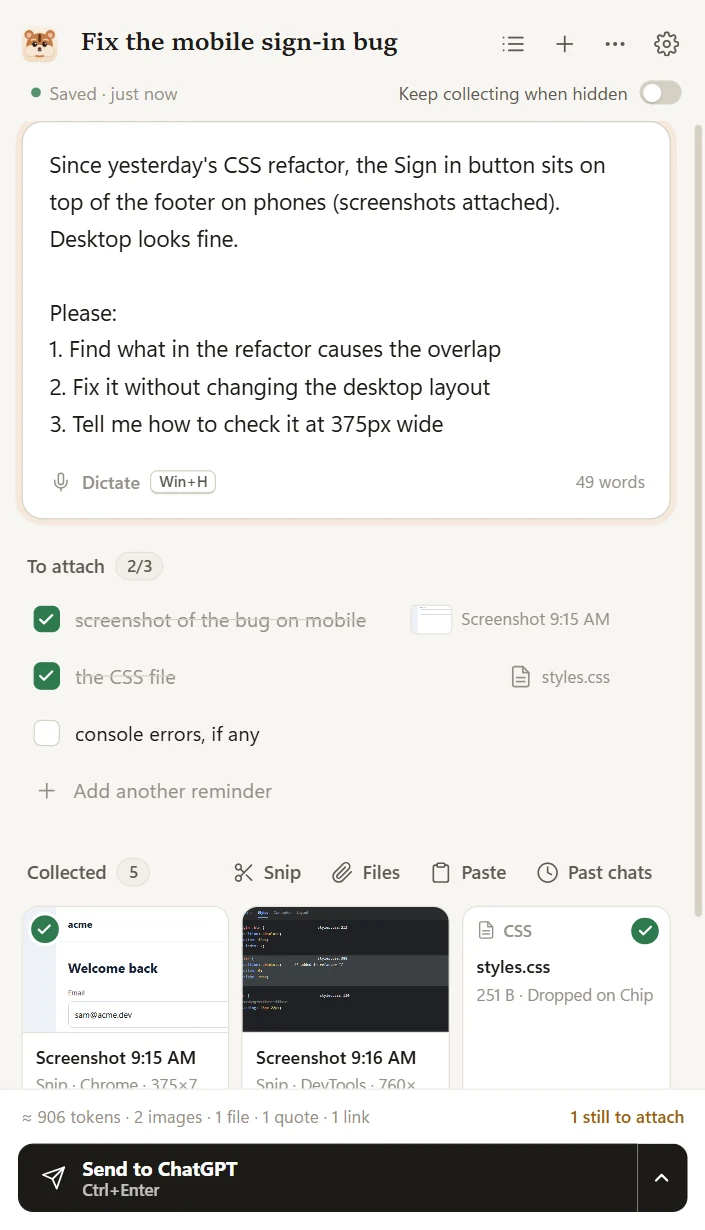
The Sign in button sits on top of the footer on phones. Fix it without changing desktop.
 Fix the mobile sign-in bugSaved
Pastes into the AI you already use
Asking an AI about something on your screen used to mean a dozen trips between windows, and a long prompt you could lose to one refresh.
About 15 seconds instead of two minutes, and you never leave what you're doing.
How it works
Press WinAltP from anywhere, or click Chip, the chipmunk in the corner of your screen.
Screenshots you take land in the draft by themselves. Paste or drop files and text. Type or dictate your prompt.
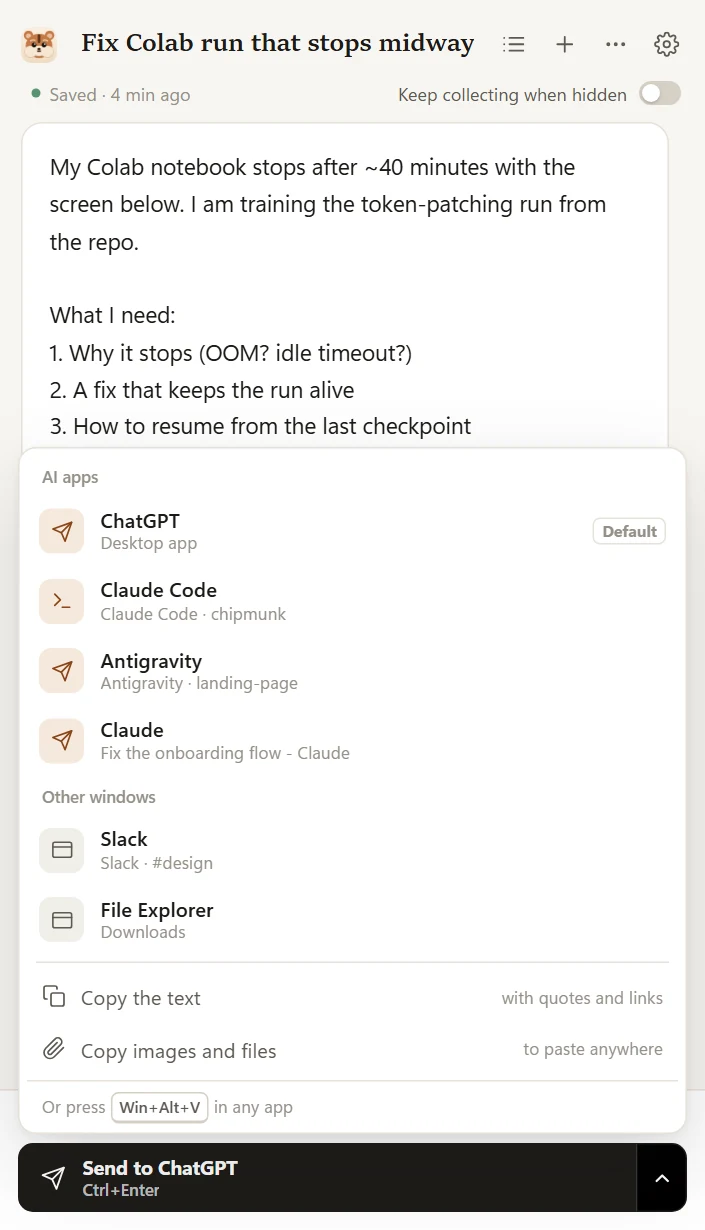
Pick ChatGPT, Claude, Claude Code or any open app. Chipmunk switches there and pastes it all, then gives you a fresh draft.
Features
Use Win+Shift+S like always. While Chipmunk is open, every screenshot goes into your draft. No saving files, no desktop full of PNGs.
Send lists every open AI app and window. It switches there and pastes images, files and text together, then puts your clipboard back.
Your draft saves on every keystroke, keeps a version every minute, and lives on your disk, not in a chat box that can reload.
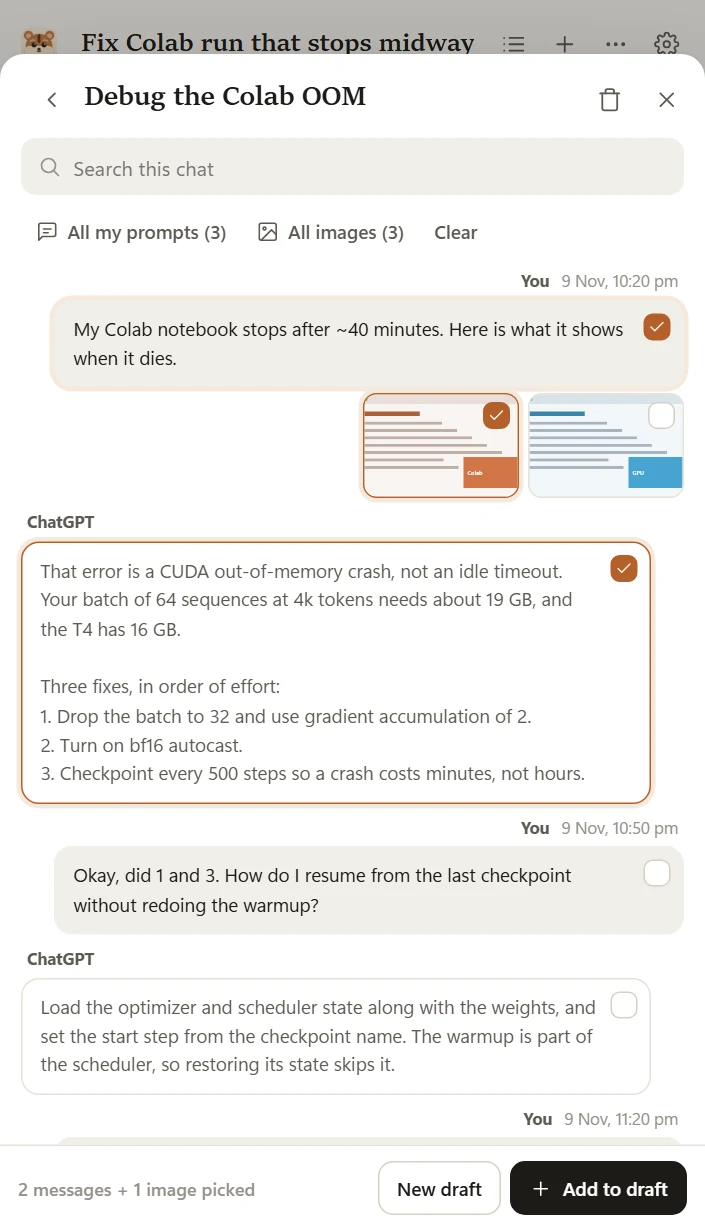
Pull a prompt and its screenshots out of an earlier Claude Code, Codex, Antigravity, ChatGPT or Claude chat into a new one.
Wispr Flow, Superwhisper, Aqua or Windows voice typing type straight into the draft. Talk through your prompt.
In a terminal, files go to Claude Code as @paths. Or connect over MCP and say "use my Chipmunk draft".
Meet Chip
Chip sits at the edge of your screen. Click it to send your draft anywhere. Switch to an AI app with a draft ready and Chip offers to paste it. Drop files on it to collect them. Don't want it? One switch turns it off.
Shortcuts
Install
Seeing "Windows protected your PC"? That's Windows being careful with new apps that aren't code-signed yet. Click More info, then Run anyway. The code is open on GitHub.
Prefer no installer? Get the portable zip. Uninstall any time from Settings > Apps.
Yes. Chipmunk is free and open source under the MIT license. No account, no subscription.
No. Everything stays on your PC in Documents\Chipmunk. Your screenshots only go to the AI app you paste them into, the same as if you pasted them yourself. The only thing Chipmunk sends over the internet is a daily check for updates, which you can turn off.
Anything with a text box: ChatGPT, Claude and Gemini in the browser or their desktop apps, Claude Code, Codex and Antigravity in a terminal, Cursor, Copilot, even Slack. Chipmunk recognises the common AI apps and lists them first.
Yes. Click in the prompt and use Wispr Flow, Superwhisper, Aqua or Windows voice typing (Win+H) as you normally would. Your words land in the draft.
Yes. Export your data from ChatGPT (Settings > Data controls > Export) and import the .zip in Chipmunk's Past chats. Claude Code, Codex and Antigravity chats are read straight from your PC.
Not yet. Chipmunk is Windows-first because that's where tools like this were missing. Star the GitHub repo to hear when that changes.
Settings > Apps > Installed apps > Chipmunk > Uninstall. Your drafts stay in Documents\Chipmunk.
Chipmunk is for Windows. Send this link to your PC to install it there.